Privacy, Consent and Personal Boundaries
Decide what is captured, how long it is kept, and exactly what crosses from your personal life into your workspace.
These images are illustrations of the concept, not screenshots of the actual product.
Overview
This concept brings together the controls that decide what TimeCampus is allowed to know about a person and who gets to see it. Across three screens it shows a personal-versus-corporate sharing view, a per-source consent and retention table, and a privacy settings page that sets capture frequency and data retention while keeping screenshot capture and keystroke logging switched off.
Automatic time capture only works if people trust it. Many tracking tools earn their data through surveillance, and once a product also observes life outside work, such as location, home, health and evenings, the question of who can see what stops being a preference and becomes the basis of trust. The design responds by treating one life as two contexts: a personal context that belongs to the individual and a corporate context that belongs to the workspace, with the individual deciding what, if anything, crosses between them.
The sharing view sets locked personal tiles for location, home, health and evenings against a workspace panel of aggregate work capacity and meeting cost, with a switchboard of what you share up to work in between and the plain statement that your employer never sees your personal context. The Personal & Corporate page, reached from the Life section of the navigation, formalizes that split: personal data is yours alone and never visible to your workspace, while the corporate side sees aggregates only. A context sharing policy offers switches for aggregate work hours, focus ratio and personal domains, and a side card explains where the gate sits: consent is checked before anything is stored, and a withheld source is refused at ingest rather than hidden when read. A table of connected sources shows each one's consent state, retention window and processing mode, including a source whose consent was withdrawn so new activity is no longer stored, a location source processed on the device only, and a wearable that is not connected. The privacy settings page adds capture-level controls for the capture interval, application usage tracking, a retention period and an automatic archive threshold.
These controls sit underneath every other part of TimeCampus. Automatic capture sources, team capacity and meeting cost views, and the life intelligence features all draw on the data these settings admit, so the choices made here shape what the timeline and analytics are able to show.
What this concept shows
- Per-source consent switches with a retention window and processing mode for each connected source
- Consent withdrawal that stops new activity from being stored, recorded in the source table
- On-device-only processing shown for a sensitive source such as location
- A context sharing policy for aggregate work hours, focus ratio and personal domains
- Personal tiles for location, home, health and evenings marked private and locked
- A workspace view limited to aggregates such as work capacity and meeting cost
- Screenshot capture and keystroke logging shown switched off under a clear no-surveillance statement
- Controls for capture frequency, application usage tracking, retention period and automatic archiving
How it works
- Open the sharing view to see personal location, home, health and evening context locked on one side and workspace aggregates on the other.
- Choose what you share up to work, such as a weekly focus ratio, while leaving location unshared.
- Open Personal & Corporate from the Life section and set the context sharing policy for work hours, focus ratio and personal domains.
- Review connected sources, granting or withdrawing consent per source and checking each retention window and processing mode.
- Open Privacy Settings to set capture frequency, application usage tracking, the retention period and the archive threshold.
Who it's for
- Individual professionals who want insight without surveillance
- Employees using a workspace provided by their employer
- Team leads and managers who plan on aggregate data
- Workspace administrators responsible for data handling
- Privacy and security reviewers evaluating a time tracking tool
Illustrations
3 illustrations of this concept. Select one to view it full size.
Personal and Corporate Sharing Settings
This illustration lays out the sharing settings as three columns inside the app shell. On the left, a Personal panel marked private to you holds four tiles, Location, Home, Health and Evenings, each with a padlock icon to show it stays with the individual. In the center, a card headed What you share up to work groups aggregate switches, with sharing a weekly focus ratio turned on and sharing location turned off, and a connector line leads down to the statement that your employer never sees your personal context. On the right, a Corporate panel for the workspace shows aggregate work capacity as a Monday-to-Sunday bar chart and a monthly meeting cost figure with a daily breakdown. The composition is designed to make the direction of data flow visible at a glance: private context on one side, aggregate signal on the other, and the user's switches as the only bridge. Chart values are sample data.
Context Sharing Policy and Source Consent
This illustration shows the Personal & Corporate page opened from an expanded Life group in the sidebar, beneath entries such as Life Timeline, Life Balance, Values & Goals and Recommendations, with the wider work navigation listed below. The header describes one life, two contexts, with you deciding what crosses. Two cards define those contexts: Personal is yours alone and never visible to your workspace; Corporate is aggregate only, with no individual detail. A Context sharing policy card shows aggregate work hours and focus ratio switched on and personal domains switched off. A side card, Where the gate sits, explains that consent is checked before anything is stored and that withheld sources are refused at ingest, not hidden at read. The Connected sources & consent table lists calendar, browser extension, editor, email, location and wearable sources with consent, retention and mode columns: email shows consent withdrawn so new activity is not stored, location is on-device only, and the wearable is not connected.
Privacy Settings
This illustration shows the Privacy Settings page, with a sidebar of Dashboard, Projects, Teams, Reports and Settings and a search field for settings in the header. A prominent card at the top states no screenshots, no keystroke logging, and that you own your data; beneath the statement, switches for screenshot capture and keystroke logging are both shown off. Below, a Data Capture Frequency card pairs an on switch with a slider set, in this sample, to fifteen seconds. An Application Usage Tracking card, also switched on, covers analysis of which applications time is spent in. On the right, a Data Retention Period card offers a dropdown, shown at 90 days, and a field to automatically archive data older than a set number of months. The page is designed to put the product's privacy stance and the practical capture and retention choices on a single screen.
Topics
- privacy-first time tracking
- time tracking without screenshots
- no keystroke logging time tracker
- per-source data consent
- data retention settings
- separate personal and work data
- employee privacy time tracking
- aggregate team reporting
- on-device location processing
- withdraw consent time tracking
Related concepts
Automatic Capture Across Every Source
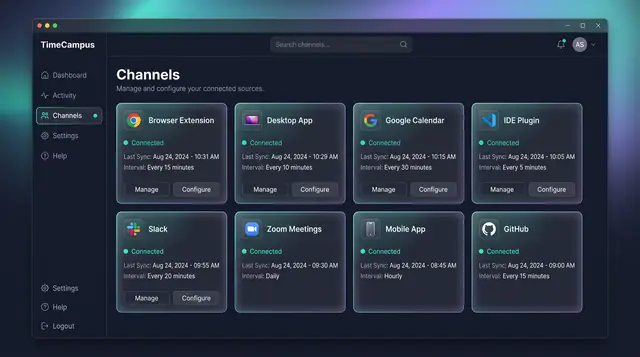
Connect your browser, desktop, calendar, editor, chat, meetings, phone and code host once, then let time capture itself.
4 illustrations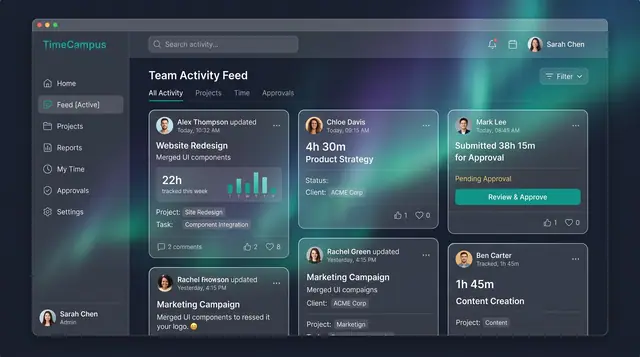
Team Activity and Capacity Planning
Follow what the team is working on, read aggregate time and meeting load, and plan allocations week by week against real capacity.
3 illustrations
Meeting Cost and Load
See what every meeting costs in hours and money, rate its value, and watch weekly meeting load before it crowds out focus.
3 illustrations
Life Timeline and Life in Weeks
See a whole day across work, rest, family and health, then zoom out to every week of your life lived and still ahead.
2 illustrations
Part of an industry solution
This concept appears in a cross-product solution on burdenoff.com — see how it works alongside other Burdenoff products to solve a problem in that industry.